
How it Will Change the Landscape of Development
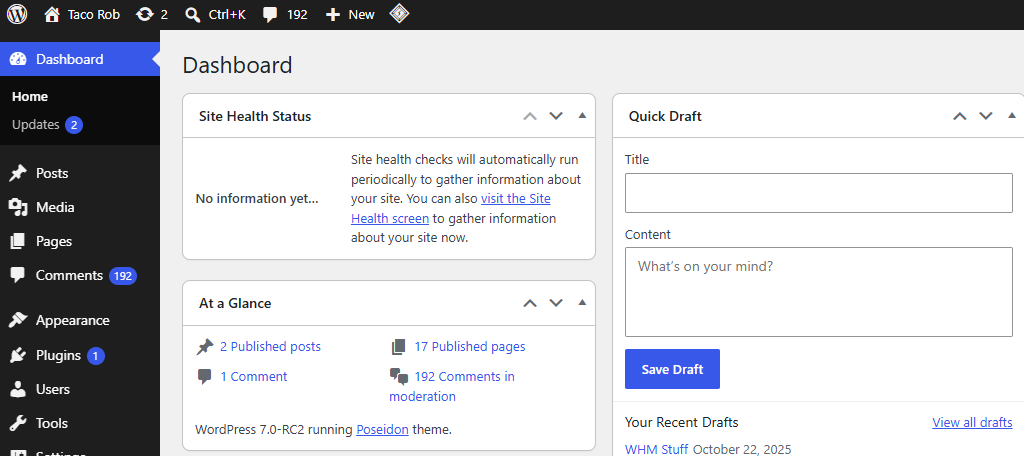

While WordPress 7.0 has been delayed until May 20th, 2026, it will change how developers create and manage WordPress websites. This update will fundamentally change how we build websites by introducing more collaborative features.

This update will also allow users to integrate WordPress with an AI engine of their choice. This will allow direct text and image generation within the Guttenberg editor.
What Is The Focus of WordPress 7.0
WordPress 7.0 is one of the largest updates to the CMS since Gutenberg was introduced. The main focus of this update is team collaboration, AI Integration, and improvements to the user interface.
It also features a robust feature update to various features in the site editor, patterns, and blocks.
AI is quickly changing the way that content is created; thus, direct integration with WordPress will not only allow for content generation but also open the door for WordPress-trained models that can automate site management.
Collaboration is key to a streamlined workflow; thus, improving this functionality is vital to keeping WordPress at the forefront of CMS. These updates are sure to improve content generation for WordPress users.
Let’s take a look at what Changes you can expect in WordPress 7.0.
Admin Interface Updated
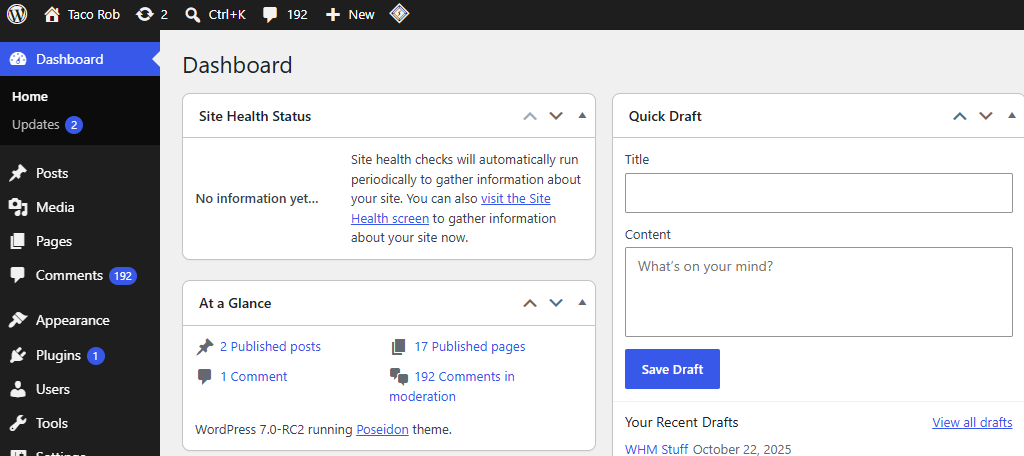
Once you install WordPress 7.0, the first thing you will notice is the updated admin interface.
It delivers a new color scheme with a new font to help improve readability. Notifications in the admin panel have also undergone a color swap from orange to blue to better match the new color scheme.
Transitioning between different WordPress areas, like Posts to Pages or Dashboard to Plugins, is now seamless. This will save users time and improve the overall experience when navigating the backend of WordPress.
AI Integration
One of the core new features of WordPress 7.0 is the integration with AI.
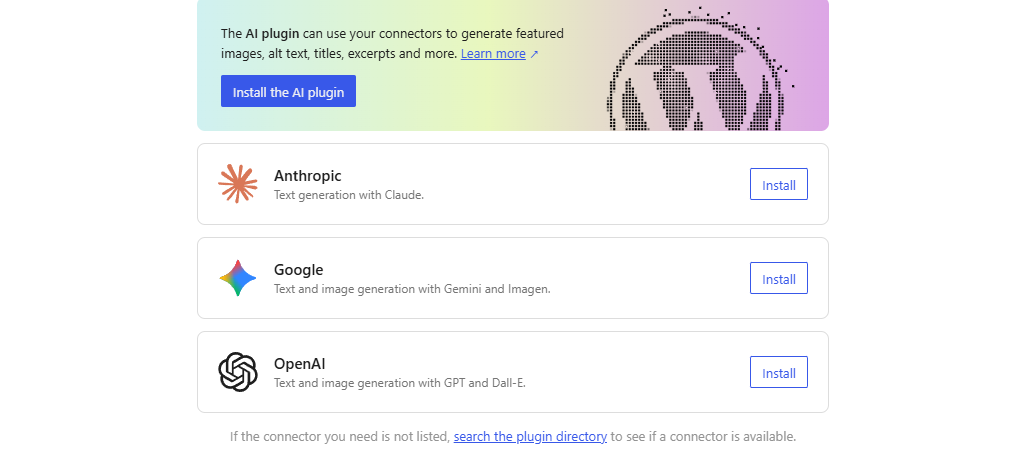
Previously, AI integration was limited and only available through plugins. With this update, you will be able to choose from three AI models (OpenAI, Google, and Anthropic) to integrate directly with WordPress.
You can find these options by clicking on Settings and going to the new Connectors option. Here you will simply choose the AI you wish to integrate with and enter the API key for your account. Naturally, you may have to pay for the API key.
More AI models can be added by installing a plugin that will add them to the Connector menu.
Integrating with an AI will allow you to generate text and images directly within Gutenberg using the engine of your choice. It can also assist you in writing code for your site, such as custom CSS.
This may also open the door to having AI models automate certain tasks, automate SEO, and other features. This will require more testing in the future, so stay tuned for more updates on how to make the most of AI in WordPress.
Real-Time Collaborative Editing
The other headliner for WordPress 7.0 is the rollout of real-time collaborative editing.
Before this update, creating content in a group was a nightmare. So much in fact, that many chose to use other collaborative tools like Google Docs to streamline group work on new content.
That changes with this update, as WordPress now shows you who is currently editing a post or page, and even shows where their cursor is and what block they are editing. There will also be a log to see who has joined or left the editing area.
On top of this, the Notes feature that was added in WordPress 6.9 has been improved upon. Users can now create inline comments for any selected text, which were previously only available for blocks.
Users can also notify each other by mentioning them. For example, you could write something like “Could you expand on this point more? @Rob” or something similar to improve the workflow.
Finally, there is also a Suggestions Mode. This will allow users without edit access to leave a suggestion that editors can accept or deny. For example, if someone notices a typo, they can suggest the proper spelling of it to the editor.
Many of these features are staples of Google Docs. As such, it will be much closer to what editing a Google Doc currently feels like.
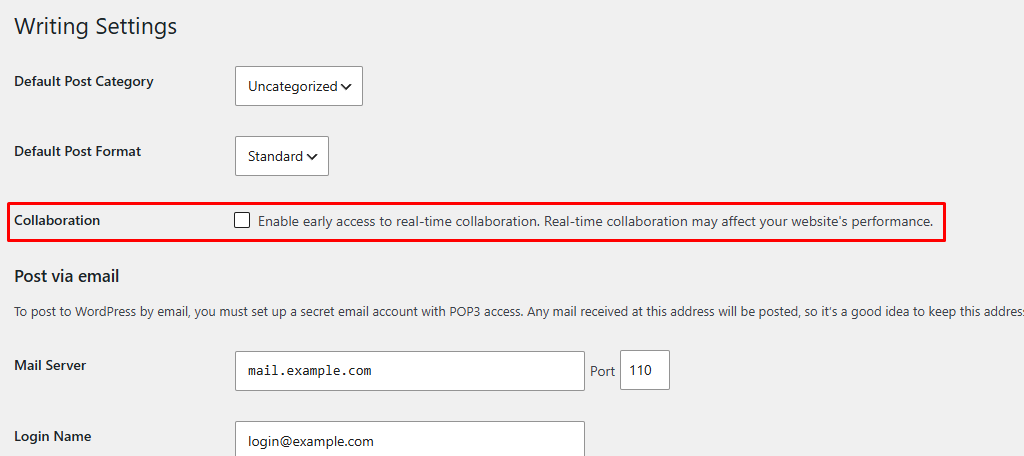
Please note that you will have to enable Collaboration. To do so, click on Settings and select the Writing option to find it.
Updated Revisions View
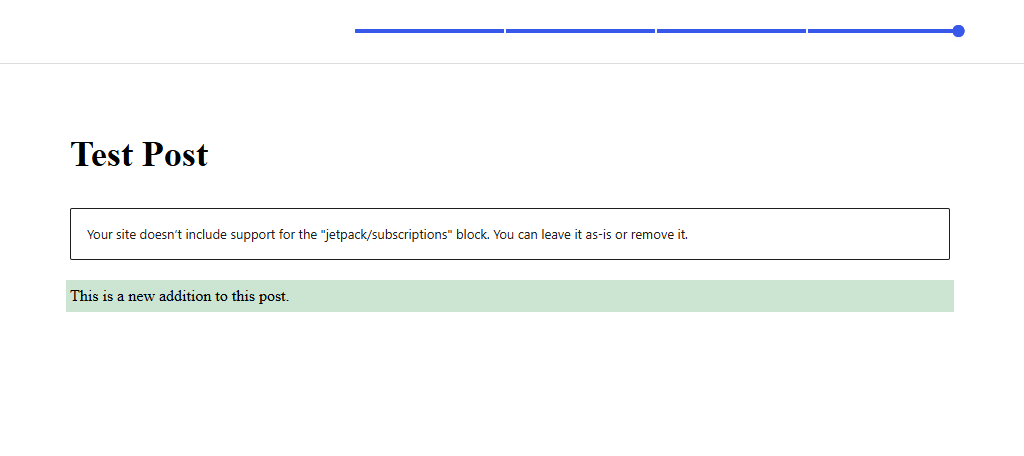
Before WordPress 7.0, the Revisions area displayed content in HTML code. As such, it was hard to identify what changed if you were not already familiar with reading HTML. Many WordPress users are not, but the Revisions display has now been updated.
Starting with version 7.0, revisions will now use a visual interface.
Or, in other words, the revision will look exactly like the post or page does. You can spot content that was added, as it will be highlighted green, or content that was removed, which will be highlighted red.
This goes hand in hand with the new collaborative editing update. You’ll be able to see which user made what edit on a post or page. Outside of the visual change, the revision functionality is nearly identical to the previous iteration.
Fonts Library Expanded to Classic Themes
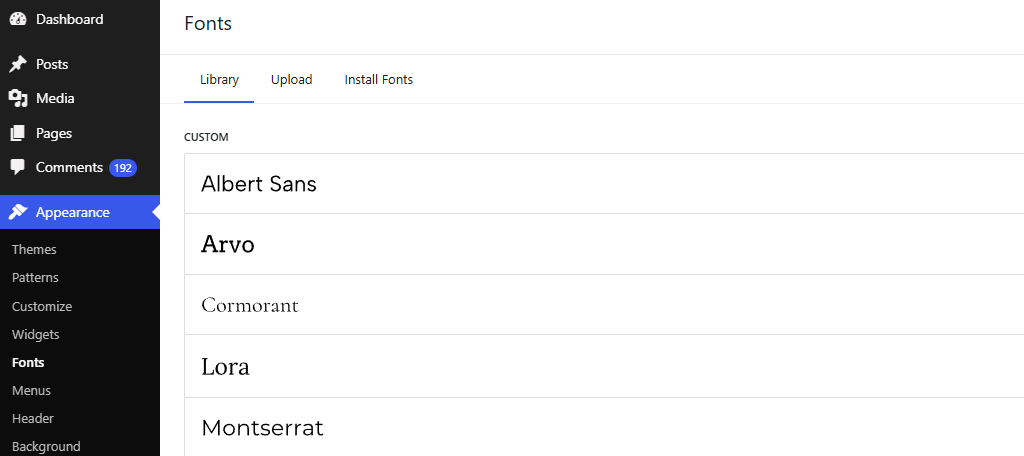
Originally introduced in WordPress 6.5, the Fonts library was limited to Block-Based themes. This allowed you to upload and choose the font type for your website as easily as possible.
Before this, sites were limited to the fonts that were included with their themes, or they had the option to install a dedicated font plugin that could add more font options for sites to use.
With the release of WordPress 7.0, you will now be able to use the Font library for Classic Themes.
This will streamline and significantly simplify the process of choosing a font. Previously, you would need to use the Customizer, A Plugin, or directly edit the theme’s code to change the font. That is no longer the case.
Now you can simply choose the exact font you want to use on your website, and it will be applied in the Fonts library.
Two New Blocks
Blocks are the bread and butter of Guttenberg, and we will be getting two new blocks with WordPress 7.0. These include the Icon and Breadcrumb blocks. Both of these have been heavily requested by users for many years.
Icon Block
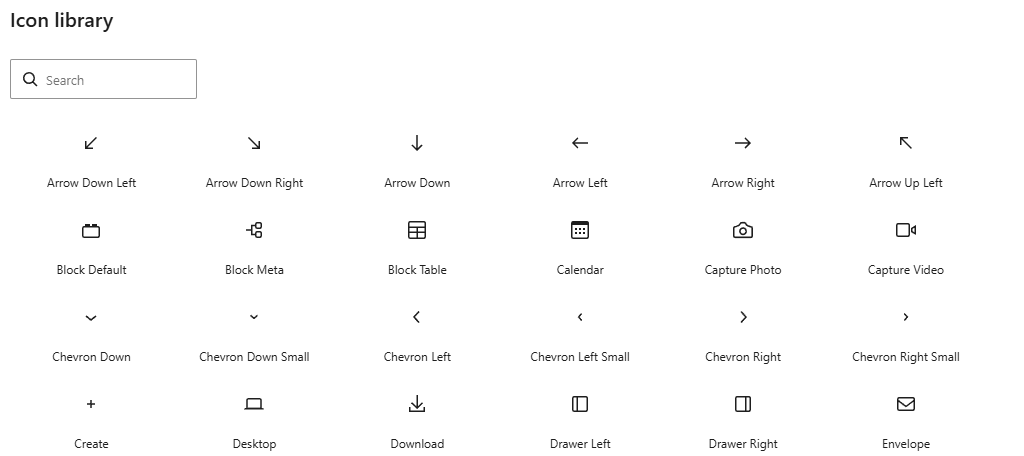
The Icon block is exactly what it sounds like. This block makes it easy to add SVG icons directly into a post or page. Block settings allow you to customize various aspects of the icon, which include:
- Size
- Margins
- Border
- Text Color
- Background Color
The initial Icons library will include 88 initial icons to choose from. This will be expanded over time. It also currently lacks a way to upload your own icons, so if you are already using a plugin for custom icons, that will still be the best option.
Breadcrumbs Block
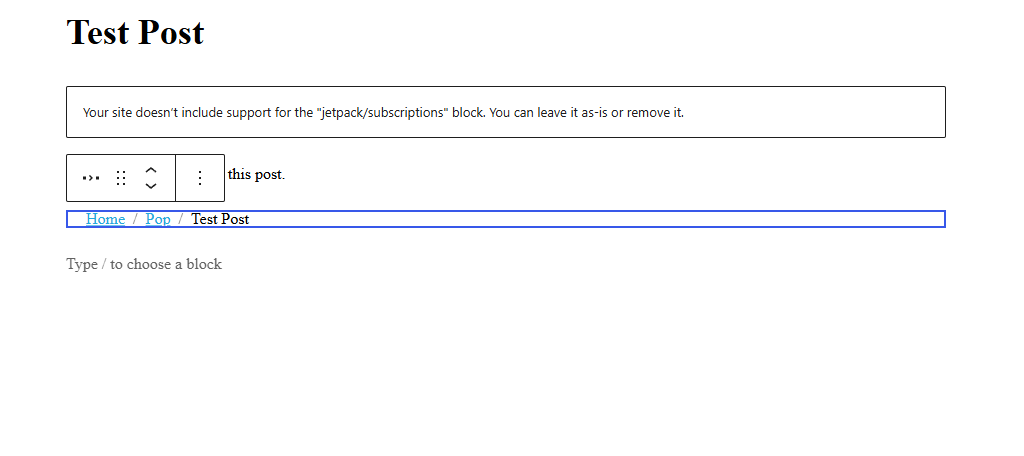
Breadcrumbs help improve site navigation by showing users where they are currently located on a website. Before WordPress 7.0, users would need to install a dedicated breadcrumbs plugin to easily add this functionality.
However, that is no longer the case. The Breadcrumbs block is finally here.
It generates an SEO-friendly breadcrumb trail for your website. Some of the customizations include:
- Color Options
- Typography
- Seperoators
- Show/Hide Home Icon
- Custom Appearance for Last Item in the Trail
This block has been a long-time request, but if you already have a dedicated breadcrumbs plugin, which you probably do, then you may want to stick with it, as replacing it across your site will take some time.
Various Block Updates
Existing blocks will also see a variety of updates. These range from general updates for every block to specific block updates. Let’s take a look at what you can expect from blocks in 7.0.
Heading Blocks Are Now Separate
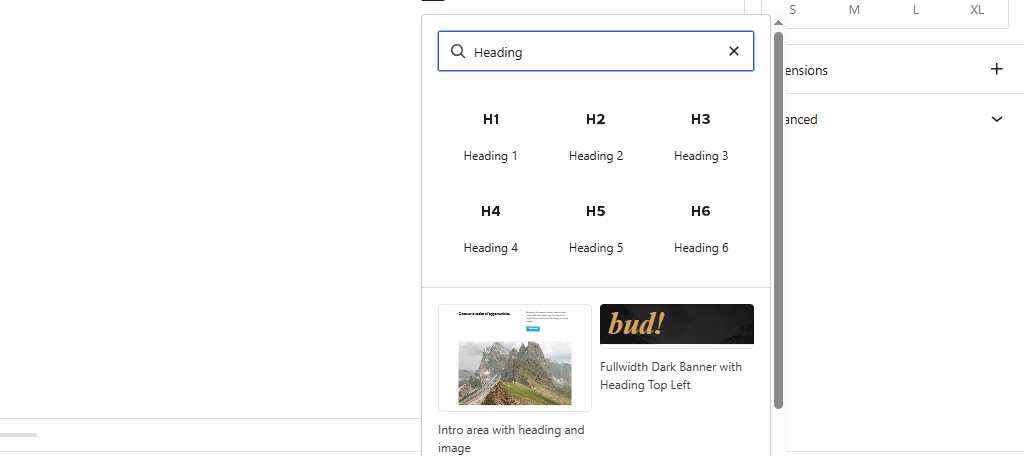
The Heading block previously gave users access to Headings 1 through 6. However, after WordPress 7.0 goes live, the Heading block will be separated into 6 individual blocks, Heading 1 through 6.
This will make it quicker to add the specific Heading that you want to add. You can also favorite the headers that you use most frequently for quicker access. The original Heading block is still available for those who don’t wish to change anything.
Custom CSS At Block Level
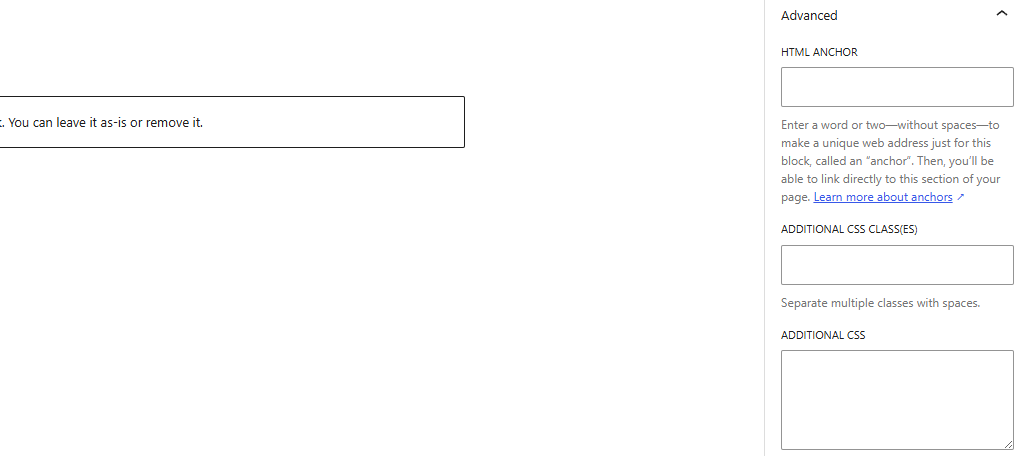
While you could previously customize blocks using CSS, you could not do so individually, or at least not very easily. That is changing with this update, as users will now find a custom CSS field in the advanced block settings.
With it, you can individually customize blocks on a page or post. This was possible with the use of plugins before, but it is now a native feature that all users can enjoy. This will give users far more customization options.
If you are not familiar with writing CSS, consider using the new AI integration to assist you in writing some.
Hide Blocks On Specific Devices
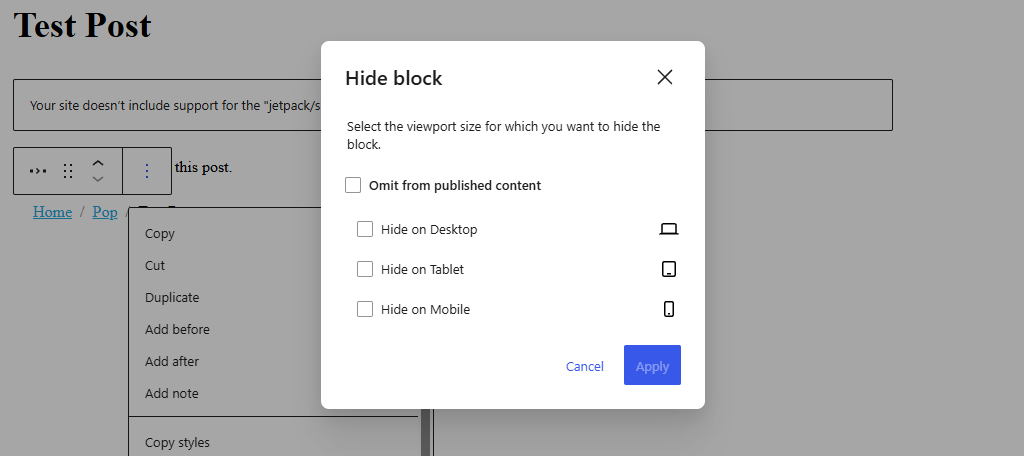
All blocks will now have the ability to be hidden on specific devices. These include options to hide them on Desktop, Tablet, and Mobile. This feature used to require an additional plugin to achieve, but it will now be a native feature.
While the gap between mobile devices and desktops has shrunk considerably over the years, one factor that will never change is the space available on screen. Mobile devices have smaller screens, and that will not change.
Thus, hiding less important elements on these devices can significantly improve performance and the user experience.
There is also an option to hide a block from published content. This could be useful for seasonal content like holidays. For example, you may have a stylized block for Christmas that is hidden and can be toggled on when December comes.
Or if you are building content collaboratively, users could create a dedicated paragraph block that includes revision suggestions, notes, and whatnot that can be hidden from users when a page is published.
Enhanced HTML Block
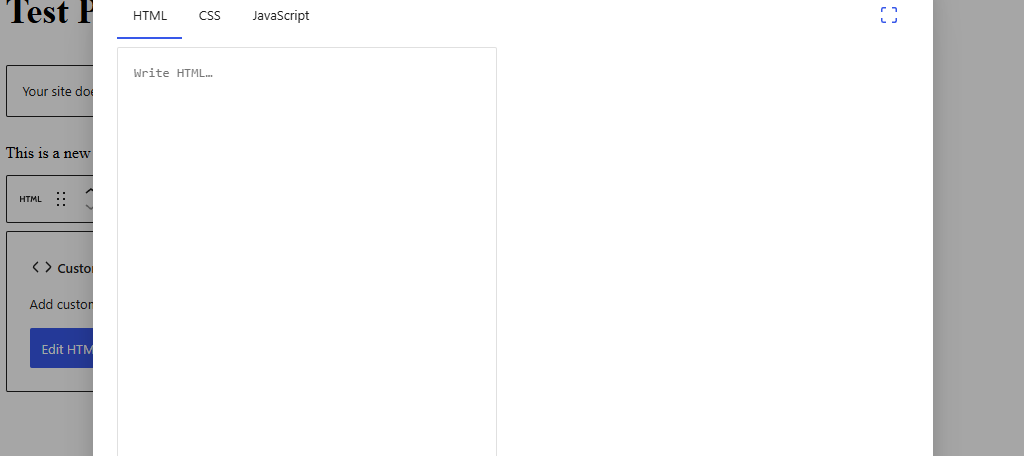
The HTML block has been enhanced for WordPress 7.0. This update transforms it from a simple text box that you could write HTML in to a more robust development tool. It now includes a dedicated window with tabs for HTML, CSS, and JavaScript.
The extra screen space makes it easier to write longer HTML segments that were often hard to write in the classic block. As a result, many users would write their HTML in a dedicated developer space and copy it in, which will no longer be necessary.
Text Indentation and Columns
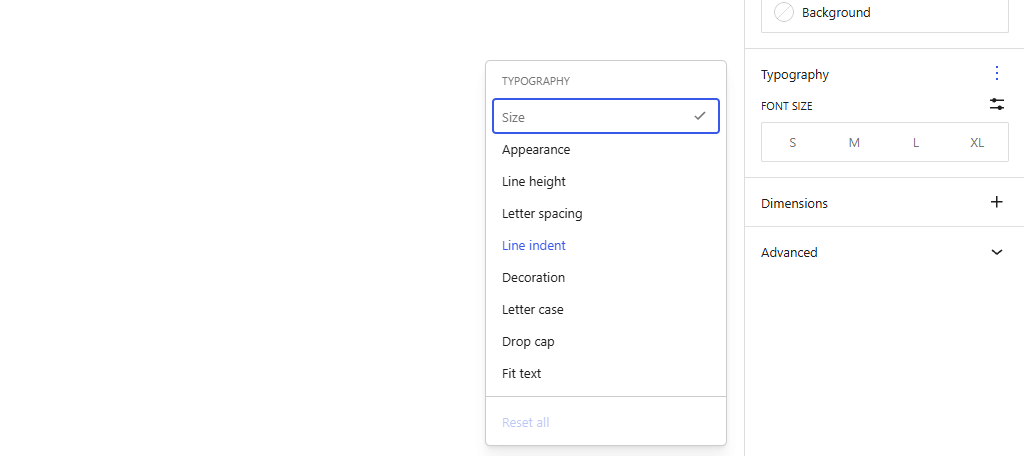
When WordPress switched from the Classic editor to the Gutenberg editor, text indentation was lost. While you could still achieve it in a variety of ways, or by installing a dedicated plugin, it wasn’t very intuitive.
Going forward, Paragraph blocks will now have a Line Indent option in the Typography settings.
Columns have also undergone an upgrade with more layout options. More importantly, the grid layout will reorganize columns better. This will result in fewer manual adjustments needing to be made. And yes, text indentation is available in columns as well.
Improved Pattern Editing
The Pattern system was a game-changer when it was first introduced, as it allowed users to create pre-made block arrangements that they could quickly add to their content and share with other users.
However, there was one big flaw when it came to editing these patterns; they would break easily.
Simply trying to change the text or image within a pattern would cause it to break the styling options and desynchronize with the database. The result was having to make it again or spend time restoring what was there.
That will no longer be a problem in 7.0 because patterns will default to Content Only mode, which will allow users to change text and images within a pattern, but not change the layout of blocks within.
There is also a Spotlight Mode for patterns now. This mode will dim out other blocks within the Guttenberg editor so that users can focus specifically on the pattern. This will help prevent editing blocks not in the pattern.
Mobile Menu Overlays
The Site Editor has also undergone some updates, with one of the biggest headliners being the addition of mobile menu overlays. These can be built directly in the site editor using blocks.
These mobile menu overlays can be saved and reused throughout the site. They have a variety of customization options due to using the blocks available in WordPress. One of the key features is the customizable close button.
Not only can you customize the appearance of what the close button for the menu looks like, but you can also place it in any location you want. This makes it easier to fit into menus that are shaped differently than traditional options.
These overlays also have a visual preview mode. Ensuring that you can see what it will look like on your site, and test that it offers a touch-friendly design that users will enjoy.
This Is Just the Beginning
WordPress 7.0 marks the largest update to the CMS since Gutenberg was introduced, but this is just the first one of the year. Users can expect continued support to enhance what is being added here and expand upon it.
According to the WordPress roadmap, 7.2 is slated for later this year and will further expand collaborative tools, improve native multilingual support (no more third-party translation tools), and continue to refine the Gutenberg editor.
There’s a lot to look forward to this year as a WordPress user.
WordPress 7.0 FAQ
WordPress 7.0 adds a lot of new features to existing components, as well as creating entirely new tools to use. You may still have some questions, so here are some of the most frequently asked questions about this update:
WordPress 7.0 has increased the PHP requirements to version 7.4. With that said, it is highly recommended to use the latest version of PHP, which is currently version 8.5.
No. Users can freely choose to integrate AI into WordPress or not. While there are many advantages to AI, it still leaves a lot to be desired when it comes to text and image generation.
There is no known limit on the number of people who can edit a post or page at the time of writing. This will require further testing upon the full release, but at least 3 users can edit the same document.
The Fonts Library supports all Fonts, as you can upload custom fonts to it. It naturally integrates with Google Fonts, which supports over 1400 fonts by itself. It also installs any fonts bundled with your installed themes.
No. The Icons block is very limited at release. The block will be expanded over the years with a more robust icon offering, but there is no confirmation of an upload feature being added at this time.
No. Unlike previous years, where WordPress releases a new theme, Twenty-Twenty Six will not be arriving. The reason is that with these new changes, you can customize any theme to meet your needs, so it is unnecessary to create a new one.
In many cases, plugins will release a new update alongside WordPress 7.0. This will fix any problems that arise, but it may take some plugins longer to get an update out. In most cases, there will be no issues, but they can occur.
WordPress 7.0 Brings A Lot to the Table
As you can see, WordPress 7.0 is a massive update that improves just about everything you love about WordPress. In many cases, the new additions will remove the need for some plugins you may have installed.
This update gives you more control over content on your site, while improving quality of life and performance. As additional updates roll out over the next year, WordPress continues to be the most dominant CMS on the market.
What features are you most excited for when 7.0 drops in May?


